Using a Security Key with Duo

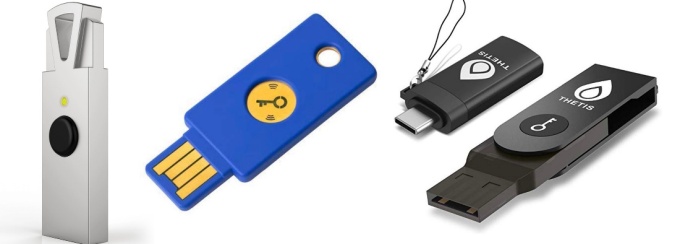
The HyperFIDO Titanium Fido 2, Security Key by Yubico, and Thetis Fido Security Key with Type C Adapter.
Learn about using your own security key with Duo and USB devices. (Not for use with UB's VPNs.)
Recommendations
General
- For mobile devices, use the Duo Mobile app instead of a security key
- Security keys work best in laptop and desktop computers
- Do not use NFC or Bluetooth devices
- The type of security key you get depends on where you may use it (e.g., usb-A is the widest available, but each person should determine their own need)
Devices
U2F is being phased out of support.
Your secure key can utilize both ‘webauthn and u2f’ for your Duo 2step verification. Your key will continue to work, but if you use Chrome you must select it from the Duo device drop-down list and select the Use secure key button to proceed. If you do not use Chrome or already select your key from the drop down list, you will not notice any change.
In our testing, we found the following security keys to work best:
Also tested:
Windows testing was done on Windows 10 Enterprise 1709
-Chrome 77.0
-Firefox 60.7, 68.0, and 69.0
MacOS testing was done on MacOS 10.14.1 Mojave
-Chrome 77.0
-Firefox 69.0
ChromeOS testing was done on ChromeOS 77.0
Yubico Security Key
- Works in Windows and Mac, Chrome and Firefox
- Works in Android Firefox, not Chrome
- ChromeOS, not detected
- Linux, iOS untested
YubiKey 5C
- Works in Windows Chrome and Firefox
- Untested on Mac, because USB C only
- Works in Android Firefox, not Chrome
- ChromeOS, Linux, iOS untested
Feitian e-Pass FIDO – NFC
- NFC not supported by Duo, but also has USB
- USB works in Windows and Mac, Chrome and Firefox
- USB working in ChromeOS, Chrome
- USB Linux, Android, iOS untested
Feitian Multipass FIDO
- Bluetooth based, recognized by OS but not Duo.
- Not working in any browser tested
- ChromeOS, Linux, iOS untested
How to add a security key
To enroll your first device, see Enrolling in Duo. To enroll additional devices, see Adding Another Device.
How to use
- When you log in and are prompted for two-step verification, make sure your security key is connected, and press the button.
- Security keys cannot be used with UB's VPNs.
See also
Need more help with technology at UB?
Contact the UBIT Help Center.