Course Scheduling Standards
When entering the schedule, accuracy is important. Learn about the standards for course scheduling.
The “Basic Data” tab in Maintain Schedule of Classes defines the names of sections, indicates location, defines instruction modes and more.

Associated Class Number
The associated class number links all class sections that constitute a single offering. With this number you can control the sections of a class which a student can enroll but also elements such as units, components and requisites.
It is important that you assign a unique association number for each section of a single component course, otherwise students are unable to wait list for multiple sections.
Campus and Location
The campus and location fields identify the physical area where a class takes place and are located on the Basic Data tab. Please update each section individually to reflect the campus and location associated with departmentally scheduled space or remote instruction. If you’ve requested Centrally Scheduled Space (CSS) put the campus and location desired.
Campus | Allowable Locations | When to Use | Allowable Instruction Modes |
|---|---|---|---|
ARR – Arranged | ARR | Only for tutorial courses where there is no classroom or campus based component. | HF*, HY*, P |
DT – Downtown | DT, RP | Only for instruction taking place on the Downtown Campus; choose RP for Roswell Park and DT for all other buildings. | HF*, HY*, P |
NT – North | EC, NT | Use NT for classes on the academic spine and EC for classes in the Ellicott Complex. | HF*, HY*, P |
OC – Off Campus (US Only) | OFC | For campuses where in person instruction occurs off campus (US based locations only). Can also be used for students completing off campus internships. | P |
OS – Overseas Campus | OS, SINGSIM | For all instruction occurring outside of the US only. Use SINGSIM for all Singapore courses, and OS for any other courses (including study abroad). | P, OL, OC, OR, HY*, HF* |
ST – South | AAG, ST | Use ST for in-person classes on South Campus or AAG for instruction located in the Anderson Art Gallery. | HF*, HY*, P |
VT – Virtual | ONLINE | Only for courses where instruction is taught remotely. | OC, OL, OR, HE |
* If the course is HF or HY, then the location and campus should represent the in-person portion.
Instruction Mode
Refers to the manner in which typical classroom activities involving instructors and students are provided. Each class section can only have one Instruction Mode, which should be coded according to the definitions and examples.
Schedule Print
This checkbox populates as checked by default. Select this check box to display the class in the schedule of classes. If you clear this checkbox, the section does not display in student or visitor class search when accessed through the HUB Student Center or Public Class Schedule. Students can enroll in these classes, but only if they enter the exact class number (without using the class search feature).
The “Meetings” tab defines where the class will meet and the days and times of the class. Multiple meeting patterns can exist if necessary.

Facility ID
Identifies where course instruction will take place. Listed below are common facility IDs. Please reduce the use of arranged locations as much as possible. Arranged locations should be limited to tutorial courses where there is no classroom or campus based component. If your departmental space is not in HUB, please contact us to request the space be entered. The Office of the Registrar will work with facilities to verify the space and add it to HUB for your use in scheduling.
Value | When to Use | Allowable Instruction Modes |
|---|---|---|
CSS | When requesting centrally scheduled space | HF, HY, P |
1320ARR | Off Campus (US Based) | HF, HY, P |
1320OS | Overseas, not Singapore | HF, HY, P |
1322 | Remote | HE, OC, OL, OR |
1422ARR | Courses in Singapore | HF, HY, P |
999ARR | Only for tutorial courses that do not meet in a class or other campus space | HF, HY, P |
Meeting Pattern
All meeting patterns need a start and end time unless the pattern is ARR, TBD, ASYN or UNSP.
The meeting pattern should always be selected from the “Pat” field. Do not manually select the days of the week when selecting a meeting pattern, as it will not successfully sync to EMS.
For those values leave meeting start and end as blank. Please do not use 12:00AM to 12:00AM as a generic placeholder. This is the only instance where you should leave a field blank.
- Only select ARR if it is a tutorial course that does not meet at a specified time.
- TBD can be used if you are still waiting to determine the time because something else is in flux (instructor, etc.). You cannot use TBD with a CSS request as we will be unable to fulfill your request.
- UNSP can be used in very rare instances where meeting pattern is truly unknown. You cannot use UNSP with a CSS request as we will be unable to fulfill your request.
Instructor
Instructor information (including role) should be entered and accurate as soon as possible.
The “Print” box must be checked for the course to be evaluated. Without that checked to print, the system does not recognize the course as having an instructor, which is what the evaluations are built around in the system. Additionally, it is important that the instructor or designee has “Post” access selected so that the final grade roster is created and they can submit final grades.
The “Enrollment Control” tab allows you to request specific room capacities and manage enrollment and waitlist capacities. When creating a section, the class status will automatically default to Active. This can be changed at any time to cancel a section if necessary or appropriate.

Wait List
The Wait List feature will allow eligible students wishing to register for a closed course to add themselves to a wait list. Students are assigned a number position on the waitlist and will automatically be enrolled in the course as seats become available. Students will receive an email from our office notifying them that they have been added to the class. Students are responsible for removing themselves from the waitlist or dropping the course if they are no longer interested.
Combined Sections
Combined Sections are also identified on this tab. A rule of thumb for combined sections is to make sure the requested room capacity for each section adds up to the total room capacity you want.
For example:
- If you have two combined classes and would like a 50-cap room, enter 25 for the requested room capacity on each section.
- Another option is to adjust the requested room capacity to reflect the enrollment capacity in each section. As an example, if the desired room capacity is 50, you can enter 40/10 or 20/30.
- As long as the total adds up to the preferred room capacity, it will be seated appropriately.
Reserve caps should be used to “hold” seats for specific groups of students (example: 1st term freshman). Reserve caps can help to control enrollment in courses that fill up quickly.

The dates entered when using reserve capacities are important to note. The latest date will be enforced if more than one requirement group is added to a specific Reserve Capacity Sequence. In the example below, the reserve caps are only enforcing the 1st Term Freshman and are no longer reserving seats for Physics UGRD Seats Reserved.

If you wanted to enforce both you would need to add another Reserve Capacity Sequence by clicking on the + sign.

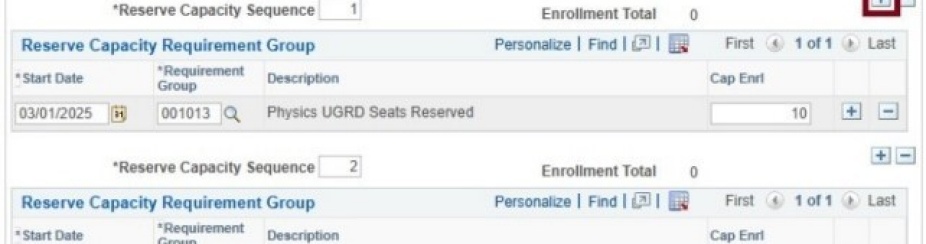
If you want to expire a reserve capacity, you will need to select the Reserve Capacity Sequence and add another row under the Reserve Capacity Requirement Group heading. The Cap Enrl field should be set to zero.
If you expire (set to zero) the Cap Enrl field value for any reserve capacity sequence within the section, the system inactivates all reserve capacity sequence values for the section.

Please make the necessary updates to the schedule by the deadline provided by the Office of the Registrar each term.