Lumi Summary
Lumi Summary creates module descriptions based on content in a module.
On This Page
Lumi Summaries are generated from content in the module.
- Web pages/HTML file in UB Learns (created using Upload/Create > Create a File)
- Uploaded files in the following formats: doc, .docx, .odt, .pdf, .ppt, .pps, .pptx, .ppsx, .odp, .xls, .xlsx, .rtf and .txt
- Assignments (from text in the Instructions field)
- Discussions (from text in the Description field)
- Quizzes (from text in the Description field)
- Media Library items (audio and video are supported, but they must have transcripts in English, Spanish, French, Portuguese or Dutch)
Lumi Summary generates three types of summaries.
- A summary written from the student perspective (I will...).
- A summary from the instructor perspective (We will...).
- A summary written about the content module (The module will...).

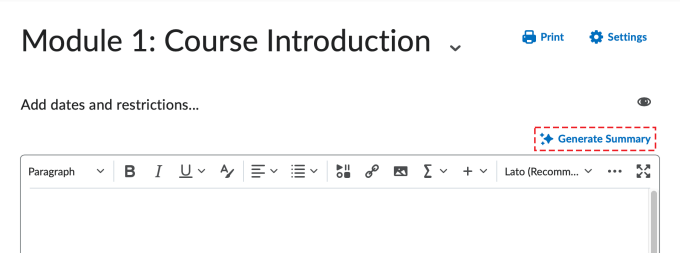
A module showing the Generate Summary button on the right-hand side.
- On the navbar, click Content.
- Using the Table of Contents on the left, navigate to a module that contains content topics.
- Open the module’s Description text box.
- If there isn’t a description, click Add a description…
- If a description already exists, click on the description. Note that generating a summary will replace the current description.
- Click Generate Summary.
- Select Include all activities… or Select the activities…
- For Select the activities…, choose the activities to include.
- Click Generate.
- Select one of the generated summaries.
- Click Insert.
- Review and edit the Lumi Summary in the Descriptions text box.
- Click Update.