Respondus Assessment Tools
Respondus tools can be used to deter cheating in non-proctored exams in Brightspace as well as create and manage test questions.
Instructors are reminded to be vigilant when using Respondus LockDown Browser in UB Learns.
UB has a single confirmed case of a student using a compromised version of Respondus LockDown Browser. A support ticket has been opened with Respondus, and they are working to improve the security of the product.
Instructors are encouraged to enable Respondus Monitor, which records the student and the student’s computer screen, as an additional security step when setting up LockDown Browser.
Need-to-Know When Using LockDown Browser
Any of the settings below will result in an error message when accessing the LockDown Browser tab in Quizzes.
- Instructor has set the status of the Self Assessment tool or Survey tool to off. Instead, edit the navbar to hide these tools from students.
- Instructor has added an IP Restriction.
LockDown Browser is a custom browser that locks down the testing environment in Brightspace. When students use LockDown Browser to take a test, they are unable to print, copy, go to other websites, access other applications or close a test until it is submitted for grading.
Tests created for use with LockDown Browser cannot be accessed using standard browsers.

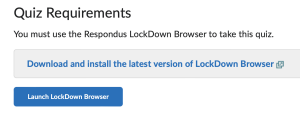
Students must launch LockDown Browser from the quiz in Brightspace. They cannot open LockDown Browser first and navigate to Brightspace.
iPad Users
Students using an iPad should install LockDown Browser from the Apple App store.
The link below, LockDown Browser Installer for Windows and Mac (includes Respondus Monitor), is the only link that should be given to students to download LockDown Browser. The installers are preconfigured to work with Brightspace.
The URL of the link is:
https://download.respondus.com/lockdown/download.php?id=231516053
Additional LockDown Browser Resources
- Includes LockDown Browser system requirements.
- Includes Respondus Monitor system requirements.
- Webinars offer the opportunity to ask questions.
Respondus Monitor is included in the LockDown Browser installation.
Respondus Monitor, available in Respondus LockDown Browser, uses video analytics and a student’s webcam to deter cheating during non-proctored exams.
Respondus Instructor Live Proctoring is included in the LockDown Browser installation.
Instructor Live Proctoring uses LockDown Browser to help prevent cheating on the computer itself, while the instructor monitors students via Zoom.
- This method is only recommended for small class sizes where instructors can effectively observe and track students during the exam.
- Instructor Live Proctoring does not allow the session to be recorded. If you want to record the students, use Respondus Monitor.
Respondus 4.0 is a tool for creating and managing exams that can be printed to paper or published directly to Brightspace.
Use the instructions below to install and configure Respondus 4.0.
Installing and Configuring Respondus 4.0
- Download the installer for the full version of Respondus 4.0 and run the installer.
When the installer has finished, launch Respondus 4.0. If this is the first time you are running Respondus 4.0, you will be prompted for the following information:
- Institution Name: University at Buffalo
- Local Support Contact: ublearns@buffalo.edu
- Installation Password:
- Y2708I231516053R047dc5ae9b4d17b8
- Please note that the password valid through the end of August 2027.
- Click License.
- Click Close if you do not want to receive news from Respondus.
- Select Brightspace from the LMS Personality drop-down menu.
- Click OK.
Updating Respondus 4.0
- Click Help and select Check For Update.
- Select Get Update in the dialog window.
- Follow the instructions.
- After the update is complete, you must exit and relaunch Respondus before the update will take effect.
Complete these steps once to configure the Publish to Brightspace Wizard. You must create or open a Respondus file first.
- In the left navigation, click the Start tab and then Open or Create.
- Click Open or Create and fill in any required fields.
- In the left navigation, click the Preview + Publish tab and then Publish.
- Click the Publish Wizard icon.
- Under Type of Publish, select Publish to single course.
- From the Brightspace Server drop-down menu, select -add new server-.
- Select Yes, check for preconfigured server settings and click Next.
- Enter a name to describe this Brightspace Server (e.g., UB Learns).
- Select Run connection test.
- Click Next.
- Click OK to log into UB Learns.
- Click OK to download the browser authentication helper tool.
- Wait for the Brightspace login page to appear and then log in using your UBITName and password.
- In the upper-right corner, click Close After Login.
- Click OK and then click Next.
- Click Finish to close the wizard after the new server settings have been added.
- Click Cancel.