Brightspace Pulse App

Instructors and learners can stay connected anytime and anywhere, through the Brightspace Pulse App. The app allows you to visualize upcoming activities, manage your time, and stay on top of coursework. Pulse is a free mobile app available for both Android and Apple devices that can help learners stay connected and on track with their courses in Brightspace. It provides one easy view of course calendars, readings, assignments, evaluations, grades, and announcement items.




On This Page:
Brightspace Pulse is enabled by default, regardless if your class is online or in-person format. Pulse automatically pulls dates from your course to help learners make better decisions about how to handle workload, when to submit assignments and when to prepare for tests. Real-time alerts can let learners know when classes are canceled, rooms are moved or new grades are available. The schedule view and weekly visualization enables learners to quickly at a glance view what is due today, this week and upcoming across all their courses.
Quizzes in Brightspace
We recommend that students do not attempt to take quizzes using the Pulse app, and instead use a laptop or desktop computer.
Brightspace Pulse sends push notifications for all new and updated course activity. These notifications help to keep students informed about course-related updates from Announcements, Activity Feed, Grades, Quizzes, Assignments and Content in Brightspace.
After logging in for the first time, course notifications do not appear until new updates are created in Brightspace.
The Updates sub-tab displays the following notification types:
- Introductory updates
- Created or updated course content
- Created or updated Course Overview documents
- Course announcements
- Activity Feed
- New grades
- Upcoming quizzes and assignments
Please note:
- You cannot configure the notifications you receive in Brightspace Pulse.
- Discussion topic due dates are unsupported as notifications in Brightspace Pulse.
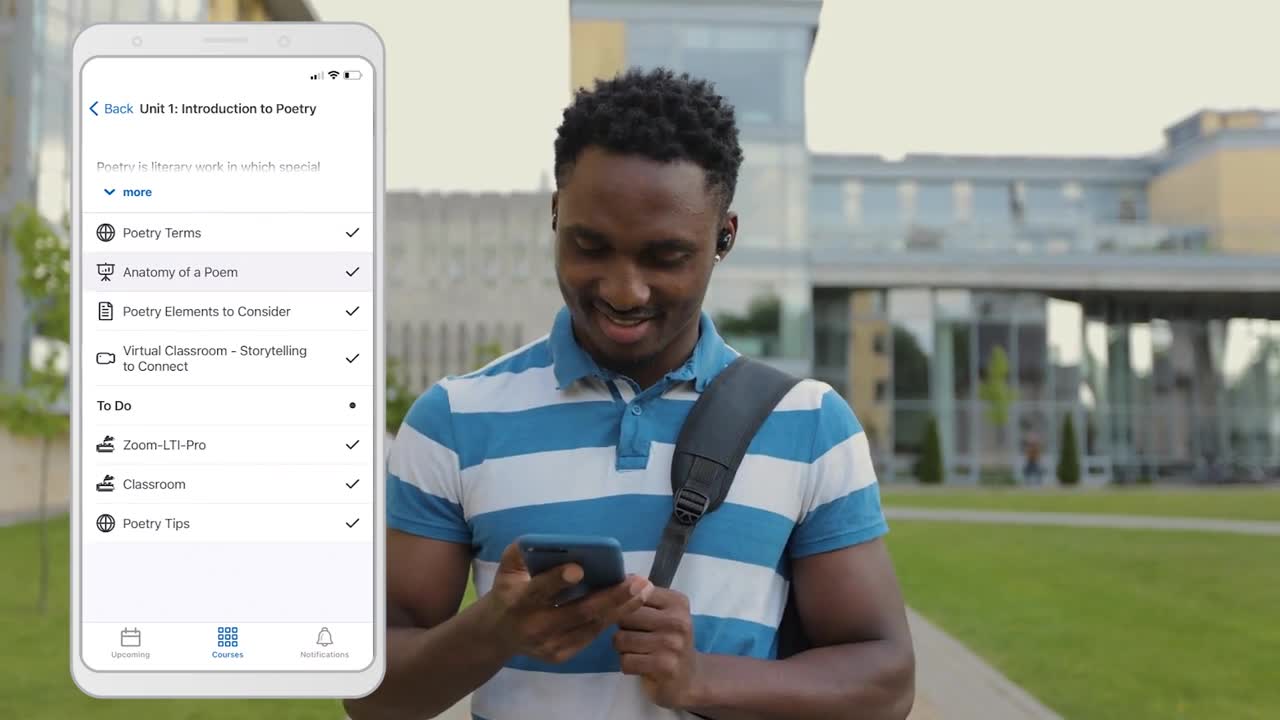
From the courses tab in Brightspace Pulse, students can view the courses they are currently enrolled in, allowing them to access course content. By default, this tab displays when students log in to Brightspace Pulse. In addition, you can view content module descriptions (if available) and access the course homepage in Brightspace.
To view courses and course content in Brightspace Pulse
- Tap the Courses tab. This displays the courses you are currently enrolled in, and a button to access the org homepage in Brightspace.
- Tap a course. The course’s content displays, and a button to access the course homepage in Brightspace.
- From the table of contents, tap a module. A content module description may appear, which communicates vital information about the course content.
- Tap a topic to view it.
Students can view all received grades for a course from the Grades tab in the course.
Important:
Course grades must be enabled and visible to learners. If course grades are not enabled or visible to learners for a specific course, the Grades tab does not display for that course in Brightspace Pulse.
From the Notifications tab, students can read and reply to discussion threads.
Unlike other notifications in Brightspace Pulse, discussion notifications do not appear in the device's notification area and do not invoke an alarm or vibration.
In Brightspace, you must first subscribe to a topic or discussion thread for a course offering you are enrolled in. You cannot subscribe or unsubscribe to topics or threads within the Pulse app.
When reading and replying to discussion posts:
- A link is provided for viewing the original post, with original formatting, in a web browser.
- Formatting is simplified for consistency - bold, italics, underline, strikethrough, subscript, superscript, and HTML lists are supported. However, font face, color, size, images, and other embedded objects are unsupported.
- Web links (URLs) can be followed.
- Unlike in the desktop version of Brightspace, students can only reply to the original post, not a specific post in the discussion thread.
- There are no formatting options when replying.
Brightspace Pulse is accessible using VoiceOver (iOS) and TalkBack (Android).