Lumi Idea for Assignments

Lumi Idea for Assignments develops assignment suggestions based on content in a module.

On This Page

An assignment must be in a module in the Content area of a course before the Generate Assignment Ideas button is available. Lumi Idea generates assignment suggestions based on content in the same module.

Use one of the following methods to add an assignment to a module.

  • Create the assignment in a module in Content (Upload/Create > New Assignment)
  • Add a previously created assignment to a module in Content (Existing Activities > Assignments)

Lumi Idea Supported Content Types

Lumi Ideas for assignments are generated from content that is in the same module as the assignment.

  • Web pages/HTML file in UB Learns (created using Upload/Create > Create a File)
  • Uploaded files in the following formats: doc, .docx, .odt, .pdf, .ppt, .pps, .pptx, .ppsx, .odp, .xls, .xlsx, .rtf and .txt
  • Assignments (from text in the Instructions field)
  • Discussions (from text in the Description field)
  • Quizzes (from text in the Description field)
  • Media Library items (audio and video are supported, but they must have transcripts in English, Spanish, French, Portuguese or Dutch)

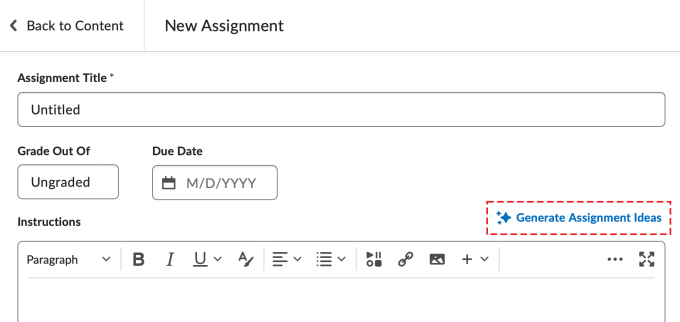
Using Lumi Idea With a new Assignment

The new assignment page showing the Generate Assignment Ideas button on the right-hand side.

The new assignment page showing the Generate Assignment Ideas button on the right-hand side.

  1. On the navbar, click Content.
  2. Using the Table of Contents on the left, navigate to a module that contains content topics.
  3. Click Upload/Create and select New Assignment.
  4. Enter a name in the Assignment Title text box.
  5. Click Generate Assignment Ideas.
  6. Select the number of ideas to generate from the Number of Ideas drop-down menu.
  7. Select a level from Bloom’s Taxonomy if desired.
  8. Select Include all activities… or Select the activities…
    • For Select the activities…, choose the activities to include.
  9. Click Generate.
  10. Select one of the generated ideas.
  11. Click Insert.
  12. Review and edit the Lumi Idea in the Instructions text box.
    • The This Assignment idea was AI-assisted message will be visible as long as any Lumi-Pro-generated content is in the Instructions text box. Students do not see this message.
  13. Complete the remaining settings for the assignment as desired.
  14. Click Save and Close.

Using Lumi Idea With an Existing Assignment

The edit assignment page showing the Generate Assignment Ideas button on the right-hand side.

The edit assignment page showing the Generate Assignment Ideas button on the right-hand side.

  1. On the navbar, click Content.
  2. Using the Table of Contents on the left, navigate to a module that contains content topics.
  3. Click Existing Activities and select Assignments.
  4. Select an assignment. The assignment will appear at the bottom on the list of content topics.
  5. On the navbar, click Assessments and select Assignments.
  6. Click the chevron icon next to the assignment name and select Edit Assignment.
  7. Click Generate Assignment Ideas.
  8. Select the number of ideas to generate (3-5) from the Number of Ideas drop-down menu.
  9. Select a level from Bloom’s Taxonomy if desired.
  10. Select Include all activities… or Select the activities…
    • For Select the activities…, select the activities to include.
  11. Click Generate.
  12. Select one of the generated ideas.
  13. Click Insert.
  14. Review and edit the Lumi Idea in the Instructions text box.
    • The This Assignment idea was AI-assisted message will be visible as long as any Lumi-Pro-generated content is in the Instructions text box. Students do not see this message.
  15. Edit any additional settings.
  16. Click Save and Close.

Additional Resources