Set up your computer - UBmail (Exchange Online)
Use these instructions to send and receive UBmail on personal devices and those not managed by UBIT staff. (If you are faculty or staff, your IT support staff will set up your UB-managed computers.)
Note: If you have not installed Outlook on your computer, see Install Microsoft 365 on your computer before continuing
1. Open Outlook.
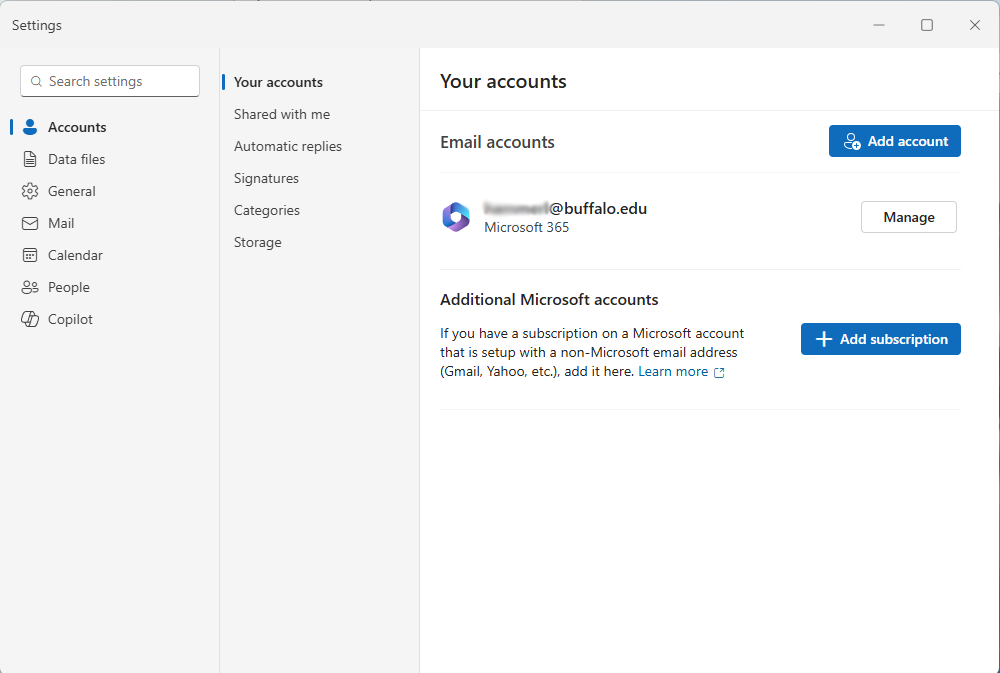
2. Select File > Settings from the drop-down menu
3. Click Accounts
4. Click Add Account
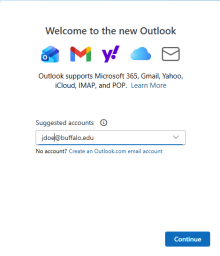
5. Enter your UB email address (your UBITName followed immediately by @buffalo.edu) and click Continue

6. You may be required to log on to the Exchange server once your mailbox is discovered (Windows Security Prompt). If so, enter your UB Email address in the User name field, then enter your UBITName password in the Password field and click OK
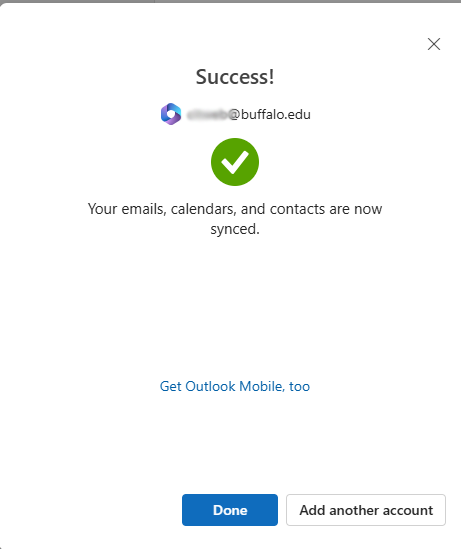
7. Click Done
Set Outlook to Avoid Sending Winmail.dat Attachments
Winmail.dat attachments cannot be read by most other email clients, including Outlook for Macintosh. Set Outlook to send messages in HTML format instead:
- Select File > Options > Mail and then scroll to the bottom of the Message Format dialog.
- Select Convert to HTML format.
- Click OK.
Meeting requests or voting buttons may not work with this setting, but you can override the format on select messages.
Applies to: Mac OS 10.14 (Mojave) and higher
Video tutorial
Learn how to download and install Outlook and configure it for UBmail.
Text instructions
1. Select Outlook > Settings
2. Select Accounts
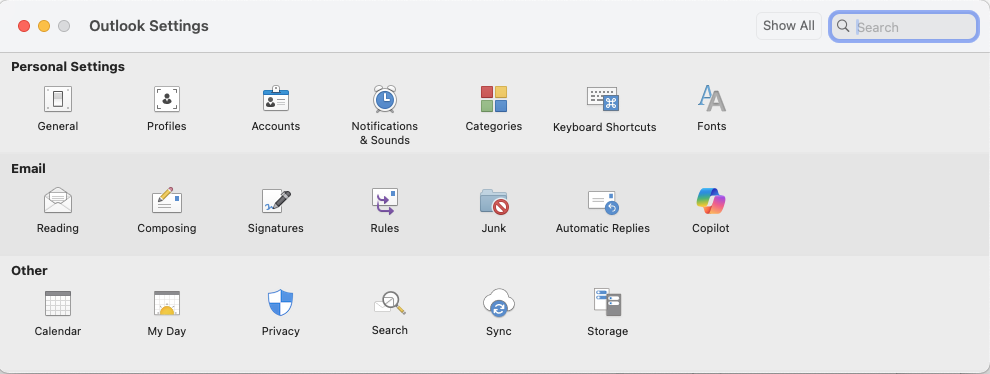
3. Select + Add Account
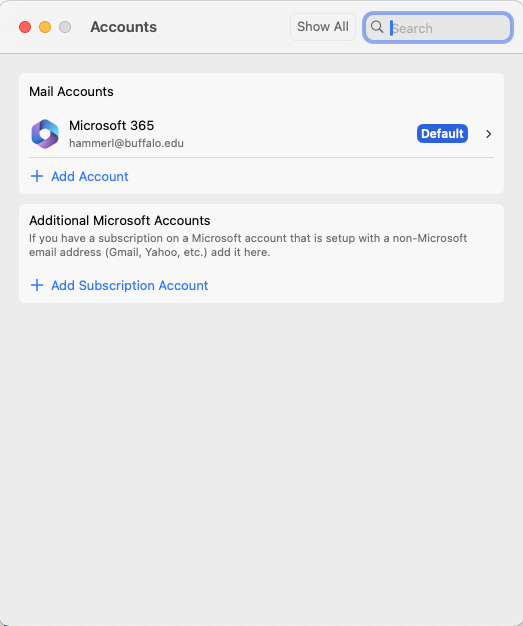
4. Enter your UBmail address and click Continue
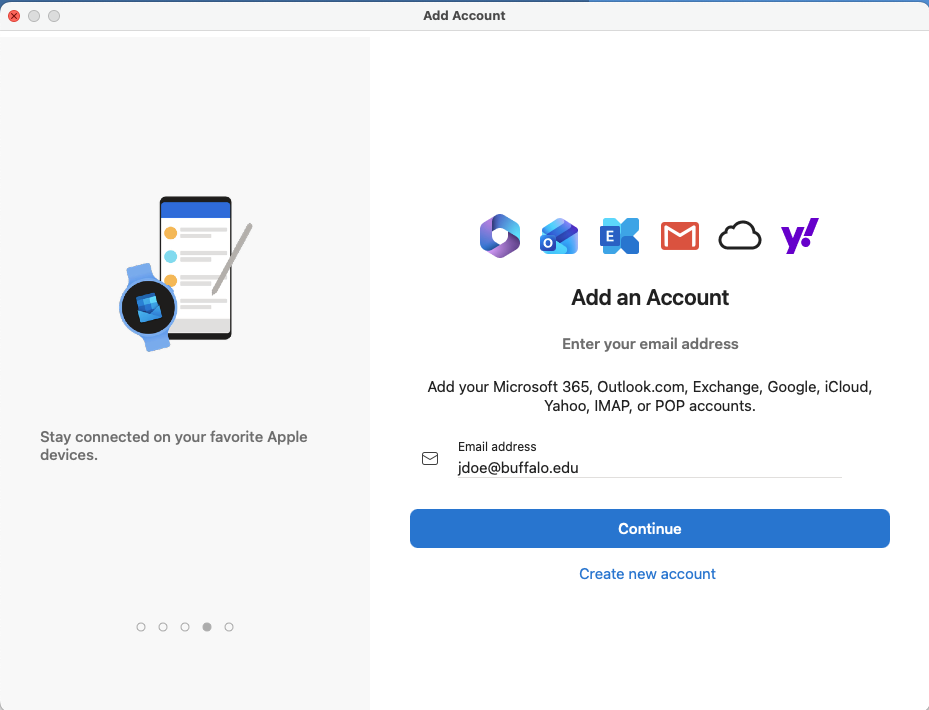
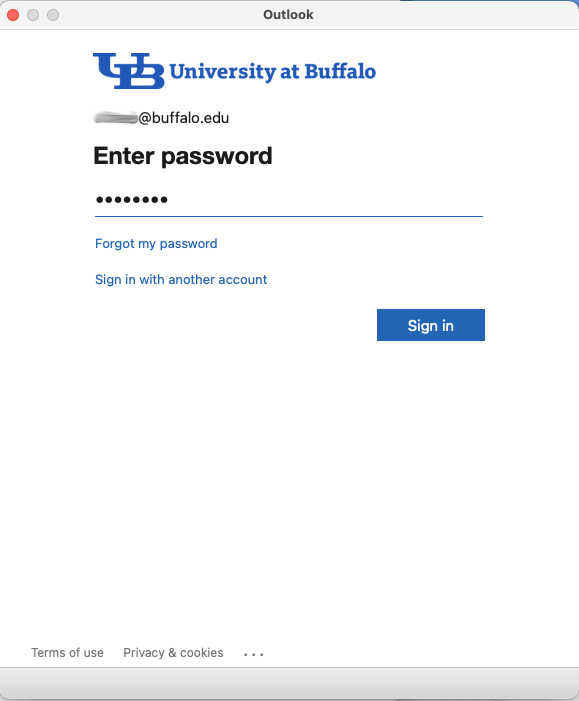
5. Enter your UBITName password and click Sign in
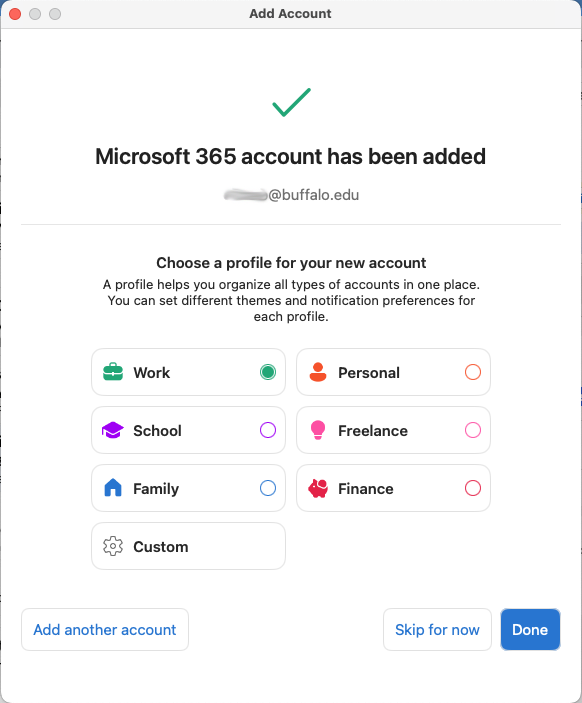
6. Select a category and click Done
Applies to: Mac OS 10.14 (Mojave) and higher
1. Launch Mac Mail application. If the Add Account dialogue appears, skip to step 5.
2. Select Mail > Preferences.
3. Select the Accounts tab.
4. Click on the + under the Accounts list window to set up a new email account. This will begin the Add Account dialogue.
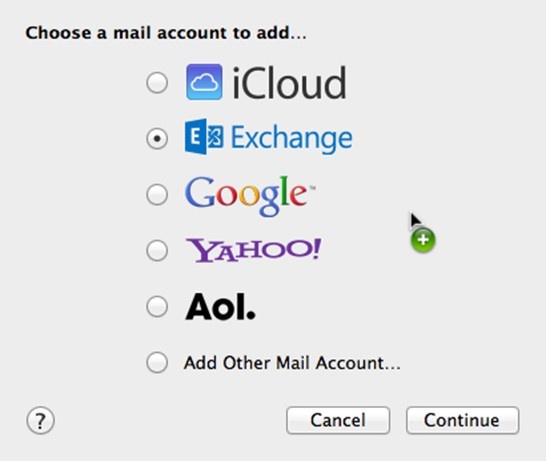
5. Select Exchange from the choice list. Click Continue.
6. Enter your Full Name, buffalo.edu email address, and UBIT password in the appropriate fields, then click Continue or Sign In. This will start the Autodiscovery process.
7. Once Autodiscovery is complete, an Account Summary will appear. Click Continue (if available).
8. Select the apps you wish to use through the Mac Mail program, then click Done.
SMTP
SMTP is available to faculty using Exchange Online. Please see your departmental IT support staff to submit a request.
See also
Contact the UBIT Help Center.