Building partnerships through collaboration.
Use Subtotal and Grand Total Features
When working in SIRI dashboards, you have the option to add a subtotal or row-level grand total on any column that has calculated fields. This allows the display of subtotals and row-level grand totals according to user preferences. Note that on some SIRI dashboards, subtotals and/or row-level grand totals are already included in the default display. In these cases, you can remove them if you prefer not to see them.
How to Add Subtotals and Row Level Grand Totals
Right-click on the column header of the field you would like to subtotal. Hover over “Show Subtotal” or “Show Row Level Grand Total.” You have the option to show or not show the value (None), or to place the value after the row of individual values (After Values). Subtotals and Row Level Grand Totals can be changed at any time by repeating these steps and selecting a different option (Figure 1).
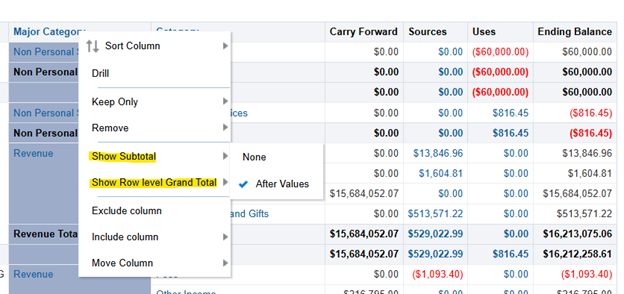
Figure 1
Click “Show Subtotal” then click “After Values” to show the subtotal at the end of the column. Click “Show Row Level Grand Total” then click “After Values” to show the grand total at the end of the row (Figure 2).

The result will appear similar to what is shown below (Figure 3).

How to Remove Subtotals and Row Level Grand Totals
- To remove subtotals, right-click on the column header of the field that is subtotaled. Hover over “Show Subtotal” and click “None” (Figure 4).
- To remove “Row Level Grand Totals,” right-click on the column header of the field that is grand totaled and hover over “Show Row Level Grand Total” and click “None” (Figure 4).
