Building partnerships through collaboration.
Use SIRI Dashboard Heading Menus
On any SIRI dashboard, right click on the column headings to view the menu options.
WATCH: Use SIRI Dashboard Heading Menus
Video runtime: 1:50
HOW-TO: Use SIRI Dashboard Heading Menus
1. Select a SIRI Dashboard and Filter on a Selection
- Log into SIRI.
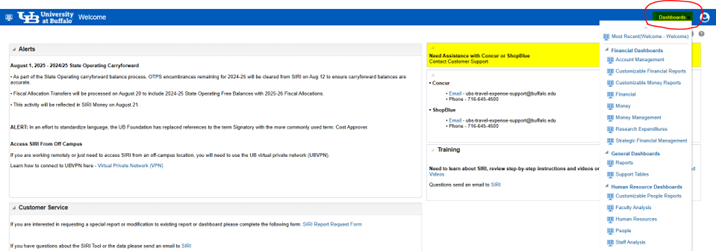
- At the top, click Dashboards, then click on the dashboard you want to view (Figure 1).
- At the top of the dashboard in the Selections area, click the arrows to see the search options and choose what you want to focus on (Figure 2)

2. Right Click on a Column Heading
- On the dashboard, right click on any column heading to see the menu options (Figure 3).

- Note some options listed above are not available on all dashboard pages.
- Click Sort Column for the following sorting options:
- Click Sort Ascending to sort the column in ascending order.
- Click Sort Descending to sort the column in descending order.
- Click Add Ascending Sort to add another ascending column sort.
- Click Add Descending Sort to add another descending column sort.
- Click Clear All Sorts in View to clear all sorts you made on the report.
- When you right click on some column headings, you have the option to use Keep Only and Remove to further define what you see. Both of these have several options that have sub options available for further refinement of the data that will be displayed (Figure 4).

- If the column has calculated fields, the following menu options will be available:
- Click Show Subtotal then click After Values to show the subtotal at the end of the column (Figure 5).
- Click Show Row level Grand Total then click After Values to show the grand total at the end of the row (Figure 5).

- Click Exclude column to remove the column from the report. It can be added back in later.
- Click Move Column for the following menu options:
- Click Left to move the column left on the report.
- Click Right to move the column right on the report.
- Click To Prompts to create a prompt at the top of the report (Figure 6).

- Click To Sections to create separate reports of the column (Figure 7).

3. Print, Export to Excel, Save, or Clear Customization to Return to Default Dashboard
- Click on the gear at the upper right-hand side of the dashboard page and select what option you want to perform for your customized view (Figure 8).
