Building partnerships through collaboration.
Save Your Customization
Save your preferred dashboard setup (filters, column order, display settings, etc.) so you don’t have to reconfigure them every time.
Steps
1. Set Up the Dashboard Page:
- Apply your desired filters.
- Adjust the column display (include/exclude, reorder, add subtotals, etc.).
- Click Apply to view the changes.
2. Save the Customization:
- Use the Save Customization option to store your current setup.
- Give it a name for easy reference.
3. Apply or Set as Default:
- You can apply a saved customization anytime.
- Optionally, set it as your default view for that dashboard page.
Set Up the Dashboard Page
- Log into SIRI.
- At the top right-hand corner, click Dashboards, then click on the dashboard you want to view (Figure 1)
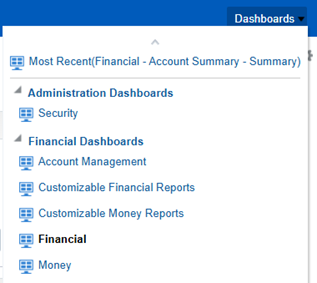
Figure 1
3. Customize your view using the right-click options (Figure 2)

Figure 2
Save Your Customization
- Click on the gear at the upper right-hand side of the dashboard page and select what “save” option you want to perform for your customized view (Figure 3).

Figure 3
- Click Apply Saved Customization to select and apply a previously saved dashboard customization. The next time you are on a dashboard page where you had a previously saved customization, clicking on Apply Saved Customization will update the previously saved customized view with current data.
- Click Save Current Customization to save the current customizations you made to the dashboard
- On the Save Current Customization window, complete the following information (Figure 4):
- Enter a Name for the customized dashboard.
- Select Save for Me. (Save for Others is not currently available.)
- If desired, check the box Make this my default for this page if you want the customization to load every time you open this page of the dashboard.
When finished, click OK (Figure 4).

Figure 4
Set Up the Dashboard Page
- Click Edit Saved Customizations to rename or delete your saved dashboard customizations.(Figure 5)

Figure 5
- Click on the button next to the name of the dashboard you want to edit or delete. NOTE: If you want to delete a customization, once you have selected it, click on the “X” and hit “OK.”
- Click Clear My Customization to clear all selections from the dashboard. The dashboard will return to the default so you can start over.