Building partnerships through collaboration.
Use the Include and Exclude Column Feature
A user can change the display of a dashboard by including or excluding columns available in the dashboard. This is done by using the “Include column” or “Exclude column” features.
On This Page:
Include a Column
- Hover over any column heading (the new column will be inserted to the right of the column you are on) then right click on a column heading, and a menu will appear.
- Hover over “Include column”. (Figure 1)
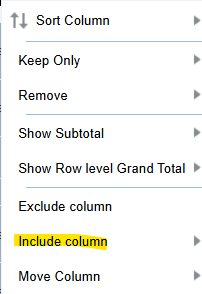
- Click on the name of the column you wish to include. The options vary depending upon which dashboard you are on.
As an example, if you hover over “Include column” on the FINANCIAL dashboard, the following options currently appear: (Figure 2)

Here’s a brief description of each column:
- Fiscal Year – lists the current fiscal year or the fiscal year you have selected in the SELECTIONS section
- VP/Decanal Unit - lists the VP/Decanal area that you have security access to or that you have selected in the SELECTIONS section
- Functional Role - lists the Functional Role from the Org Structure
- Area/Discipline - lists the Area/Discipline from the Org Structure
- Sub-Department/Program – lists the Sub-Department/Program from the Org Structure
- Base Entity – Lists the Base Entity from the Org Structure
- Entity Number – Lists the Entity Number for each organization included
- NACUBO Description – lists the NACUBO description associated with the account
- Report Category – List where the account is designated as Non-Operating, Operating, or Other
- Report Status – Indicates where or not it is included in reports by a YES or NO
- Account Status – indicates if the account is Active, Closed, Inactive, or Pending Close
- Major Category – indicates the UPlan major category (examples – Revenue, Personal Services, Non Personal Services, etc)
- Category - indicates the UPlan categories that are the next level of detail down from Major Category (examples – Supplies, Contractual Services, Grants and Contracts, etc)
- Sub Category – further defines the UPlan category (examples – Office Supplies, Contractual Services – General, Research Foundation – Indirect, etc)
- UB Code – further defines UPlan category (examples – Initialized Cash Balance, Student, Rental Expense)
- Allocation – the fiscal allocation (State) or RF Budget amount coming from the strategic financial data
- Revenue - IFR/SUTRA/UBF revenue amount from the strategic financial data.
- Funds Available for Spending – the begin balance + sources, the amount they could currently spend
- Expenditure – lists total expenditures to date for the chosen fiscal year
- Encumbrance – lists total encumbrances to date for the chosen fiscal year
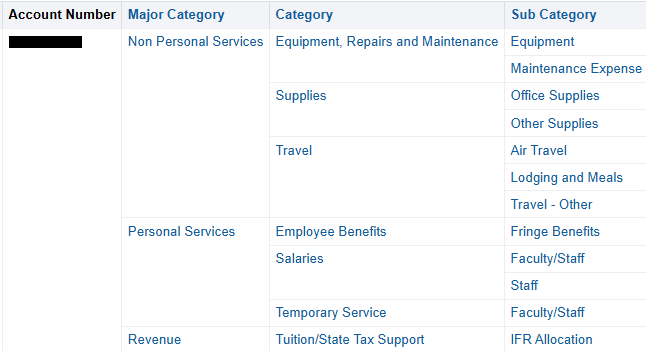
For example, in the FINANCIAL Dashboard -> ACCOUNT SUMMARY -> ACCOUNT SUMMARY – SUMMARY, by right clicking on Account Number, you can add the columns for Major Category, Category, and Sub Category for additional information about expenditures: (Figure 3)
Exclude a Column
- Right click on the column you wish to exclude, and a menu will appear.
- Click the “Exclude column” option and the column that you were on will no longer appear. (Figure 4)

Figure 4
- Using the example referenced above, if you no longer want to see Category, by right clicking on that column heading, you can exclude that column: (Figure 5)
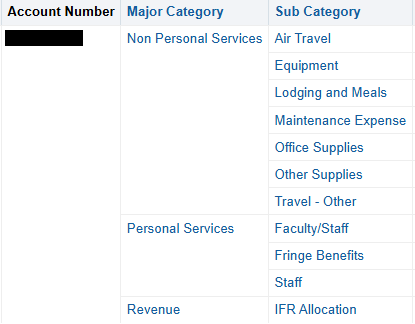
Figure 5