Enroll in Direct Deposit of Parent PLUS Loan Refunds
Authorized Payers are encouraged to enroll in direct deposit to receive refund(s) faster.
For Authorized Payers anticipating a refund from a Direct PLUS Loan, it is essential to use the exact name and email address provided on the Direct PLUS Loan Application.
How to Enroll in Direct Deposit of Parent PLUS Loan Refunds
1. Log into QuikPAY through the Authorized Payer website.
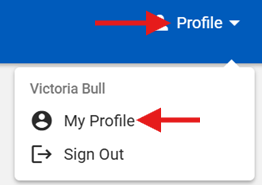
2. You are brought to the QuikPAY homepage. Click on Profile, My Profile in the upper right corner to review your profile information (Figure 1). For Authorized Payers anticipating a refund from a Direct PLUS Loan, it is essential to use the exact name and email address provided on the Direct PLUS Loan Application.
If any changes need to be made, update and click Save at the bottom. If nothing needs to be changed, close out of the tab.
3. Click Manage Refunds in the navigation menu.
4. Click Manage My Refunds to enroll in direct deposit. You will leave this page and enter a new site.
5. You will be prompted to Enroll in Text Alerts. You may check both boxes if you so choose, but you must check the Confirm Your Identity By Text box in order to proceed. Enter in your 10 digit mobile phone number and click Save. If you do not wish to confirm your identity by text, click Do this later and you will receive an email with your verification code instead.
6. If you checked both boxes, you should receive a text message:
- “You are now enrolled to receive SMS notifications from Nelnet Refunds on behalf of University at Buffalo. To un-enroll, reply SCRSTOP to opt out of text alerts."
- “To edit your refund method, enter the Authentication Code XXXXX on the Authentication page in Refunds. To un-enroll, reply SCRSTOP to opt out of text alerts."
If you chose not to enroll in mobile alerts, you should receive an email stating the following:
- "You have requested to edit your refund method. In order to proceed, please enter this code on the Authentication page of Refunds: XXXXX".
7. Enter the Authentication Code received via text or email in the blank box under Authorization Code and click Submit.
8. Select the radio button next to Bank account (direct deposit). If you do not want to enroll in direct deposit, click on Do this later (Figure 2).

9. Enter your bank account information including the Account Holder's Name, Bank Name, Checking or Savings Account, Routing Number and Account Number (need to enter twice). Once you've entered your bank account information, click Save.
10. You are now enrolled in direct deposit.
Need Assistance?
Contact the Student Accounts office by phone at 716-645-1800, or submit your question using our online form.
Need to Edit or Remove Your Direct Deposit Account Information?
Our helpful training guide can assist you in doing so.