Force Registration Submission Instructions
Force Registration requests are submitted by the student. The instructions below are provided as guidance when assisting students with the process. Additional details are displayed showing how the request moves through the approval process within the Force Registration Request portal.
1. Navigate to the Force Registration Request portal.
Students will need their UBIT name and password. They then click on the Submit Request tab. Enter their full name, UBIT, or person number, select their name, and click Go to Request.

Important Notices
- Force registration requests for a future term may only be submitted on or after the student’s enrollment appointment start date. This form is only available during valid registration dates and closes one week after the add/drop deadline for the given semester. Students who applied for graduation will not be able to request a force registration for any semester beyond their graduation term.
- If a student has a registration hold, they may receive a warning message when submitting the request. The message does not stop them from submitting the request. However, the enrollment may not be processed by the Office of the Registrar until the student’s hold has been resolved.
2. Select the semester, subject, course number and reason for the request.
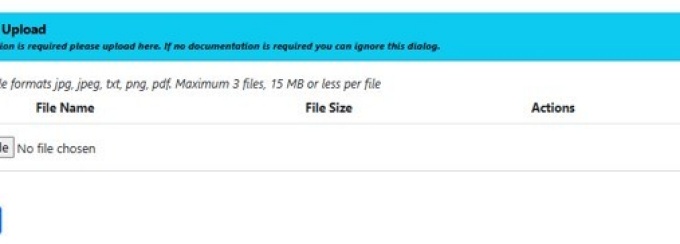
Select the semester, subject, and course number. Then select the Reason for Request and enter the justification for the force registration in the box. Students have the option to utilize the Document Upload to add any supporting documentation if applicable. Click Submit.


Once submitted, a message will be displayed acknowledging the successful submission of the request.

3. Email notification step.
Once submitted, the applicable departmental contact will receive an email notifying them that the force registration request is available for their review.

4. Departmental reviewer updates the request in the portal.
The reviewer can then navigate to the Request Table in the Force Registration Request portal. They may need to adjust the filters to view additional terms, subjects etc. Click on Update to populate the table below.

Select the applicable request in the table and click on the blue square icon to open the request.

5. Add approver to the request.
Once the request opens, they will send the request link to the primary instructor for approval by adding participants. Type the participant’s name directly into the Participants box. Select the approver’s name and then click on the blue plus icon.

6. Select the invitation template.
A new Add a Participant window will open. Click on the drop-down menu to select the invite template. You may send the template or add/modify the text provided before sending. Click on Preview to preview the message or Send to send the invite email. Participants will receive an email when they have a pending request that requires their attention or updates have been made to the original requests. The email will contain a link that will take them directly to the request.

7. Add comment to approve or deny request.
The faculty member approves or denies the request by adding comments in the comments field and clicking post to send an email to all participants (Email Participants checkbox must be selected). Students cannot see these comments.

8. Add additional approvers as required.
Repeat the above steps to add additional approvers as required. To determine the appropriate approval process, refer to the guidance outlined in the force registration request under the below headings.

9. Update the request status.
Once the request has been approved, the final approver should change the Status of the request to Approved, and then click the blue Update button. The student can then be registered in the course and notified.
For Course Outside of Primary Career requests, the final approver should add REG-EXCEPTION as a participant. This will notify the Office of the Registrar that the request is approved and ready for processing. The Office of the Registrar will review the request to confirm that it meets the acceptable policy criteria and will send an email to the student indicating if the request was approved or denied. If approved, the Office of the Registrar will process the request in HUB.