Empowering Instructors | Supporting Excellence
Enterprise AI Tools

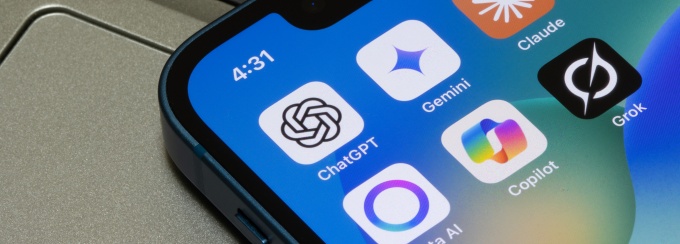
Generative AI is playing a growing role in teaching, and learning and UB offers several enterprise tools to help faculty use it effectively and responsibly. Some tools support instruction and creativity, while others help maintain academic integrity and limit unauthorized AI use. This page provides an overview of the AI-related tools available at UB and guidance on how they can support your course goals.
With a growing number of AI tools available at UB, choosing the right one can depend on what you want to accomplish. UBIT’s Which AI Tool Suits My Needs? resource can help you compare available options and identify the tool that best fits your needs.
Copilot


Copilot offers a safe and structured way for faculty to get comfortable with generative AI. With features like guided prompts and the Teach tool, it can help instructors brainstorm ideas, build course materials and streamline everyday tasks.
- As UB’s enterprise tool, your chatbot conversations are kept private. Microsoft Copilot does not use UB employees’ chatbot conversations to train its model.
- The “Teach” tool, accessible from the left-side menu, guides faculty through creating rubrics, study aids like flashcards, and even helps with curriculum planning.
- Microsoft offers self-paced training opportunities. For example, the Enhance teaching and learning with Microsoft 365 Copilot Chat module is a roughly 1 hour course that is aligned with reputable standards and frameworks, and teaches the user how to do such things as “design prompts for learning” or “evaluate responses.”
- Copilot was built to search one’s internal documents, like a user’s Word documents, PowerPoint presentations, or Excel spreadsheets. However, its full capability is only available to users with Copilot Premium, which is not UB’s default account. Departments can purchase Copilot Premium licenses through UBIT for their faculty.
ChatGPT


ChatGPT is a generative AI tool developed by OpenAI that can assist with writing, problem-solving and content creation. While it is not available university-wide, it is approved for Category 2 and 3 data, and departments may purchase licenses for faculty and staff.
Lumi Pro


D2L Lumi Pro offers AI-powered tools that help instructors analyze and improve course design directly within UB Learns. It provides insights and recommendations that support more effective and inclusive learning experiences.
Zoom


Zoom includes several AI-powered features that make synchronous online classes more engaging and inclusive. These tools can enhance live instruction and streamline meeting management, offering options such as AI-generated summaries, lecture-focused templates and built-in captioning to support clarity, accessibility and student engagement.
Getting Started
Begin by reviewing your Zoom web portal settings by navigating to https://buffalo.zoom.us/ and signing In with your UBIT credentials. Once signed in, click “Settings” from the left side menu. Zoom’s AI tool is called the “AI Companion.” Here are some things it can do, if the user chooses to enable them:
- Allow meeting attendees to ask questions of the AI companion. This is helpful if someone arrives late to class and does not want to disrupt the proceedings to catch up on what they missed.
- Generate a meeting summary with the AI companion, including any content shared in the Chat. The user must elect to enable this feature.
- Meeting Summary Templates: did you know that you can change how the meeting summary is formatted and there is a designated template for “Lecture Summary”?


Click the pencil icon to make changes. If you are using Zoom to teach synchronous online classes, you may want to use the “Lecture Summary” template instead of the default template. This template was created with educators in mind.
- The AI companion also has smart compose features that helps you complete sentences and generate quick replies, if these features are enabled in your global settings.
- Zoom recordings have also become more robust because of AI and now have recording highlights, automatic chaptering, transcript generation, and many other recording tools to maximize the user’s time spent watching Zoom recordings.
Zoom offers native live captioning that users can turn on and off. As long as the host has enabled closed captioning, students can decide for themselves if they want to see the captions or not. Some students may need the captions; other may find captions distracting. The choice is up to the individual without affecting the entire class.


OCR when screensharing ensures that content you show when screensharing is machine-readable. This means that your content is more likely to captured accurately in AI summaries, but users must toggle on this utility.
BullsAI
The BullsAI platform gives UB students, faculty, and staff access to a growing set of AI tools hosted on UB-managed infrastructure. The platform supports people at many experience levels, from people exploring AI for the first time to instructors, researchers, developers, and technical teams building advanced workflows.
Turnitin


Turnitin is a plagiarism detection and writing integrity tool that compares student work against a large database of sources to identify similarity and potential AI-generated text.
Important notes for using Turnitin’s AI detection tool
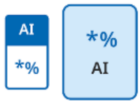
- At least 20% of the paper must be AI-generated for the AI detection tool to “kick on”
- If 1%-19% was generated by AI, you’ll see this icon:

- The program can detect text ran through a “humanizer” A.I. program
Turnitin FAQs
Less than 1%.
Well, it uses AI. How fitting, right? Turnitin gives each sentence a score of “0” if the sentence is determined to have not been AI-generated and a “1” if the sentence is determined to have been AI-generated. Then, it averages all the sentences’ scores. From Turnitin’s AI Technical Staff, 2024, p.4: “While LLMs write in a very human-like manner, they exhibit noticeable statistical signals that are visible to specially trained AI systems. These signals originate from the fact that LLMs generate word tokens sequentially from a probability distribution. The sequences of tokens from LLMs tend to have much more consistent sequential probability than sequences of tokens on the same topic or concept written by a human – meaning LLMs select the most probable word tokens to continue the topic, giving it a more formulaic structure when compared to human-writing”
“Care was taken during dataset construction to represent statistically under-represented groups like second language learners, English users from non-English speaking countries, students at colleges and universities with diverse enrollments, and less common subject areas such as anthropology, geology, sociology, and others to minimize potential sources of bias when training the model” (Turnitin AI Technical Staff, 2024, p. 7).
Neurodivergent students are a protected class, meaning their work cannot be collected separately by Turnitin to train its models. However, Turnitin is currently working with institutions in a southern state that exclusively enrolls neurodivergent students to collect samples of their writing for training purposes.
Only Spanish and Japanese. But no paraphrasing detection yet.
Note: Turnitin’s AI detection feature relies on AI models to identify patterns associated with AI-generated text. Instructors using this feature are using AI to help monitor possible AI use and should communicate this clearly to students.
Respondus Lockdown Browser and Respondus Monitor


Respondus Lockdown Browser is a secure testing environment for UB Learns that restricts students’ access to other websites, applications and generative AI tools during quizzes. It helps protect exam integrity by ensuring students remain within the assessment until it is submitted.
- For assessments administered in UB Learns, faculty can utilize Lockdown browser to ensure students are not using generative AI tools when taking tests.
- Lockdown Browser is a separate browser in which the student accesses the test. It was carefully designed to only allow access to the test and no other websites (including sites like ChatGPT) when the assessment is in progress.
- Lockdown Browser will prevent AI agents from scraping/crawling a test’s UB Learns page.
- UB also has a license to Respondus Monitor. Respondus Monitor includes all of the features of Lockdown Browser but also adds video proctoring. Students are digitally recorded as they work through their exams. After the exam concludes, the professor receives a report of all students’ behavior during the exam and can review those individual student’s videos where questionable behavior was flagged.
- Respondus Lockdown Browser and Respondus Monitor are only available on UB Learns Quizzes. It is enabled by clicking on “Assessments” from the navigation bar, then “Quizzes” and then “Lockdown Browser.” It is not available on assignments or discussions.
- For additional information about exam proctoring software, review the Proctoring Tools page on the Office of Academic Integrity’s website.