Stay Organized: Class Schedule Sync and To-Do List


- When you allow the Navigate mobile app to access your phone’s calendar, your class schedule imports automatically so you can see all your courses and personal events in one place.
- A Checklist is your personalized to-do list in Navigate that helps you stay organized and on track.
Syncing Your Calendars
Upon logging in to the Navigate mobile app, click the Class Schedule icon.


Select the Actions Icon (3 dots on top right of screen), then select Add to Calendar. After selecting this, your courses will automatically be synced with your phone calendar.
- Asynchronous courses do not display on your calendar as there is no meeting time.


Holidays and Breaks
Syncing your course schedule to your calendar will not remove UB holidays or breaks. Courses will continue to display during spring break, fall break, and other days when classes are not in session.
Creating Personal To-Dos
Checklists help you stay organized by keeping all your important tasks in one place. Navigate provides pre-loaded “to-dos” to guide you through key steps each semester, and you can also create your own personal to-dos to stay on track.
1. Open Navigate on your desktop browser or the Navigate Student mobile app and select “Checklists.”
- Here you will find pre-loaded to-dos designed to help keep you on track each term.

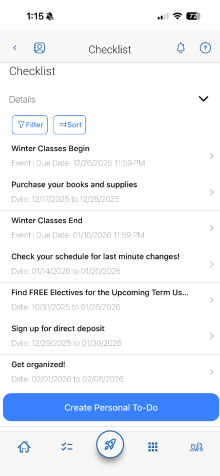
2. To create your own task, click “Create Personal To-Do.” Next Add a title, date, and description, then select Submit.

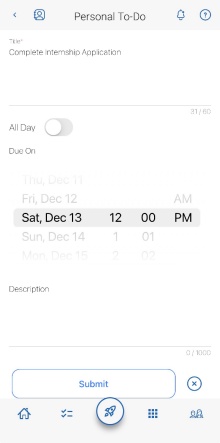
3. To update your progress, open a to-do and mark it as completed once it's done. If you need more time, edit your personal to-do to change the date or update details.