Connecting to Campus Resources
Finding the right person, office or resource on campus to ask for help can be challenging.
- Submit a Connect Me Request through your Navigate mobile app or desktop browser and tell us how we can assist you in finding what you are looking for.
- Learn about how to use the many resources available to you as a UB student, and how to get in touch.
Submitting a Connect Me Request
1. Log in to Navigate Desktop or the Navigate Mobile App.
2. Locate and select the Connect Me Request icon on the main menu or select the "?" icon at the top corner of the welcome bar and select Connect Me Request from the dropdown menu.

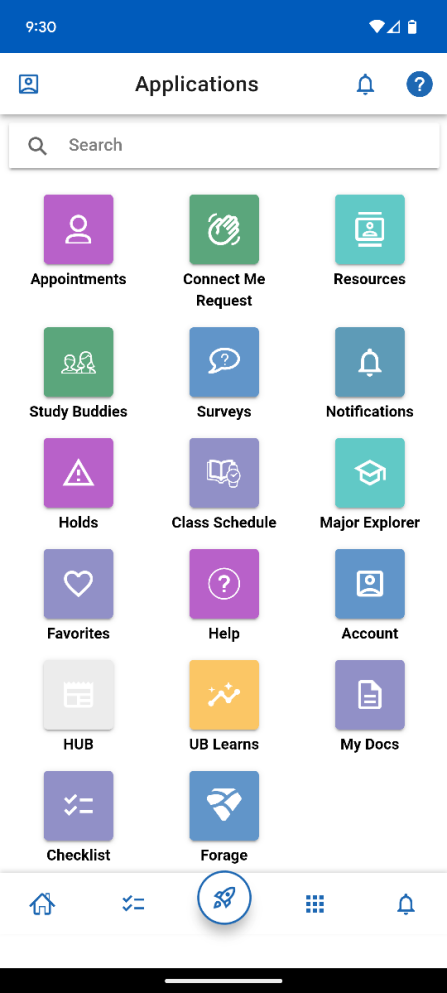
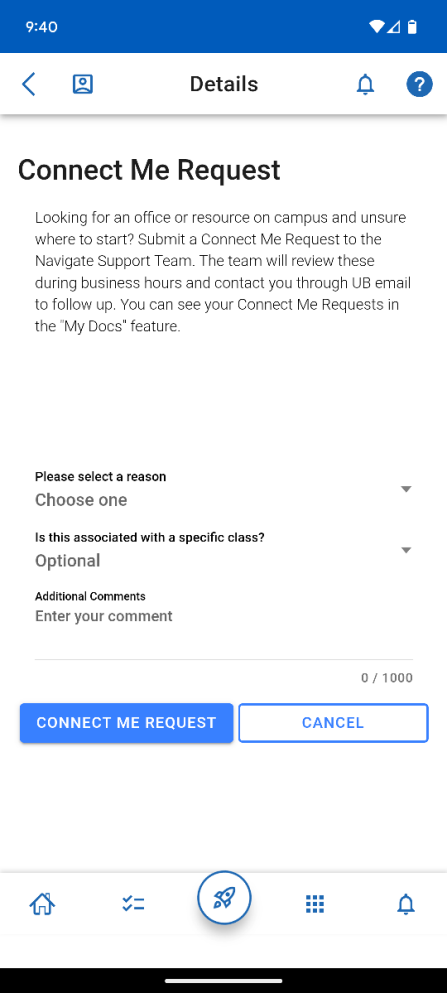
3. Open the Connect Me Request dropdown menu and select "Connect me to a resource or office" from the drop-down options.
4. Add in additional, relevant comments to your request or associate your request with a currently enrolled course. Please know, in the comments you can indicate what office, staff member or resource you are trying to get in touch with. Please use appropriate caution when sharing sensitive, personal information.
5. Select the blue Connect Me Request button to submit your request or the Cancel button to cancel your request.

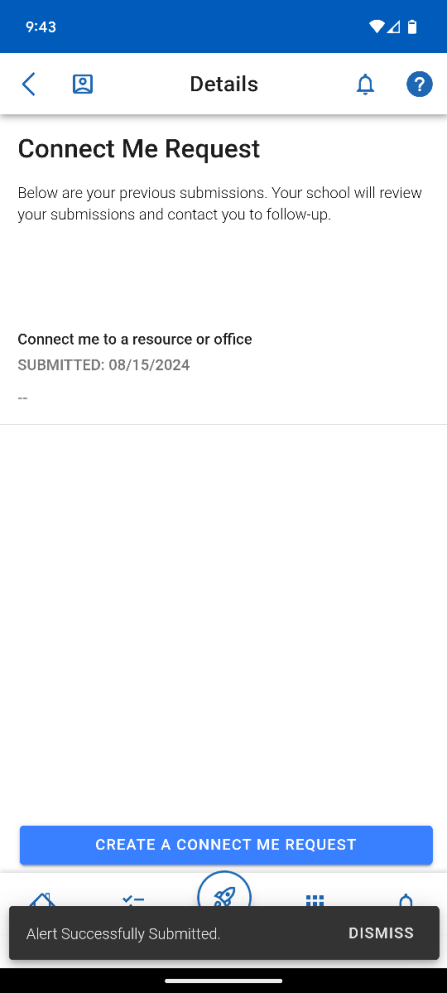
6. Receive pop-up notice (bottom of screen) that your Connect Me Request was submitted.
7. Check your UB email for a reply from connectme@buffalo.edu
(typically within 48 business hours). The Navigate Support Team will reach out to you directly using UB email.

Tracking Your Connect Me Request
1. Log in to Navigate Desktop or the Navigate Mobile App.
2. Locate and Select the "My Docs" icon on your main Navgate landing page.

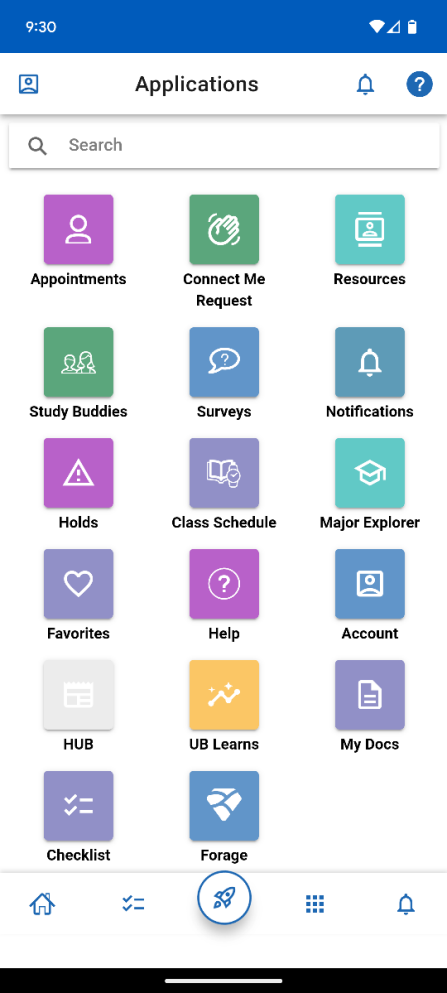
3. Select Connect Me Request.

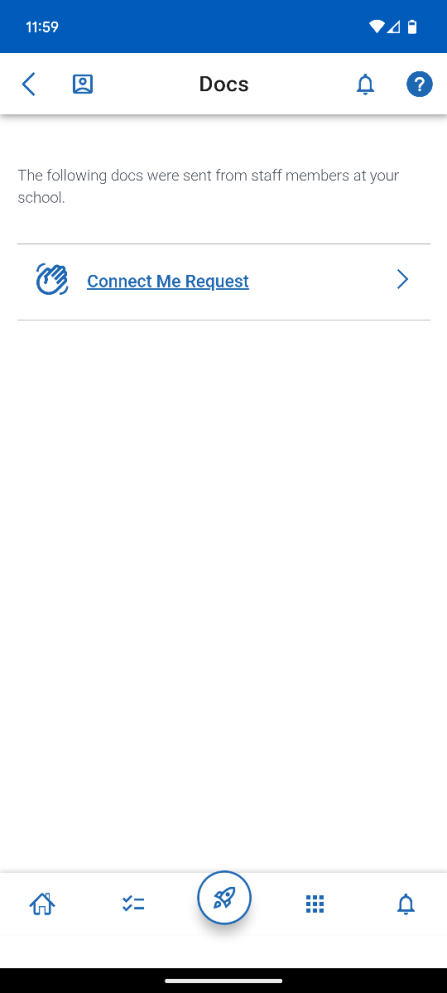
4. View past and current Connect Me Requests.

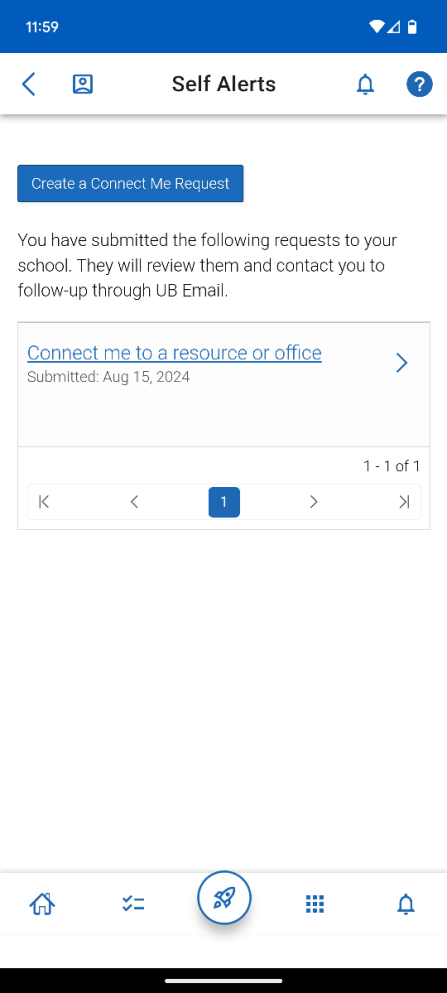
Questions?
If you have questions or concerns about Connect Me Request, please feel free to contact the Navigate Support Team at Connectme@buffalo.edu. We look forward to assisting you!
Using the "Resources" Section in Navigate
The Resources section in Navigate helps you quickly find campus offices, services, and the people on your Success Team. You can browse helpful “Places” like advising, career services, and involvement opportunities, or view “People” such as instructors and assigned advisors. Each listing includes contact details, hours, and key information to help you get the support you need.
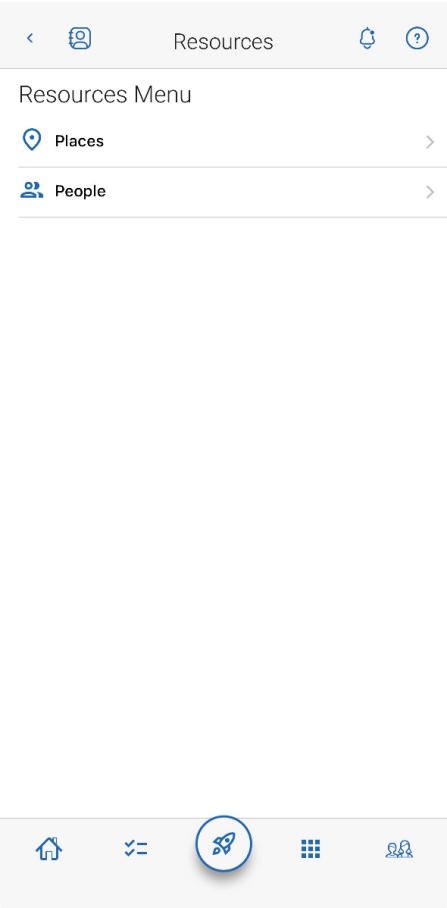
1. Open Navigate on your desktop browser or the Navigate Student mobile app and select "Resources" from the main menu.
2. Choose between:
- Places - Explore campus resources such as Academic Advising, Career Design Center, Getting Involved, and more.
- People - View your assigned UB support staff (your "success team") and your instructors, including their emails, office hours, and roles.


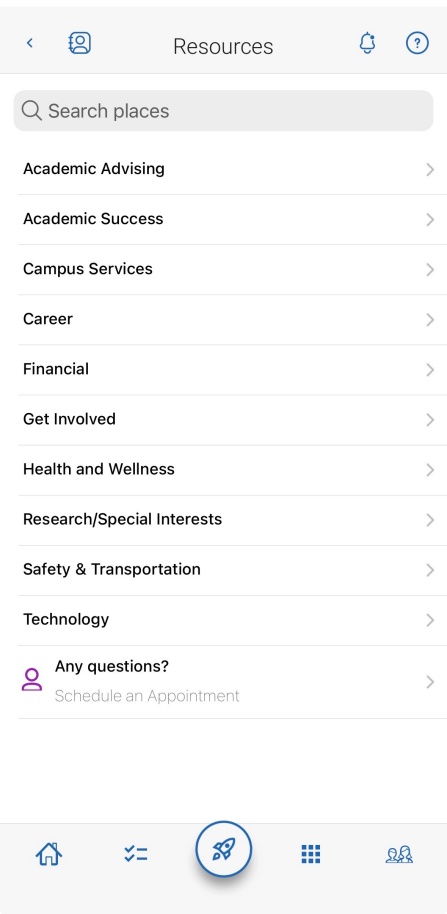
3. Click any listing to view contact information, location, office hours, and details about the service.