Software Center
Users of SENS-supported computers running Microsoft Windows 10 and 11 can leverage the Microsoft Software Center to install software without the need for administrative support.
Sample Installation Step-by-Step
Here is an example using the "Cisco Jabber" software, but the process is the same for all software provided by Software Center.
1. To start, click your mouse in the Windows Search box, located on the Task Bar:


2. Type "software center" and press return. You should see these results:

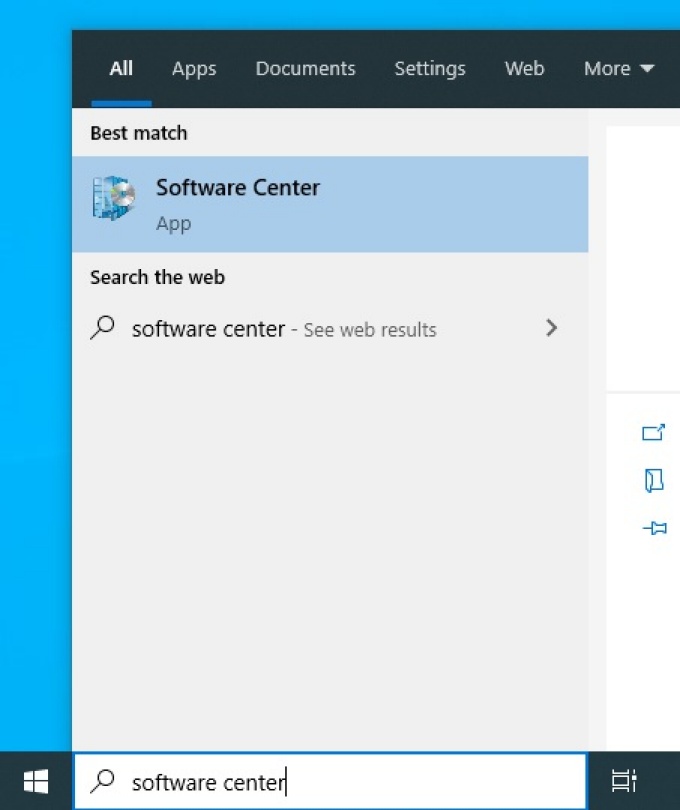
Click the "Software Center" result.
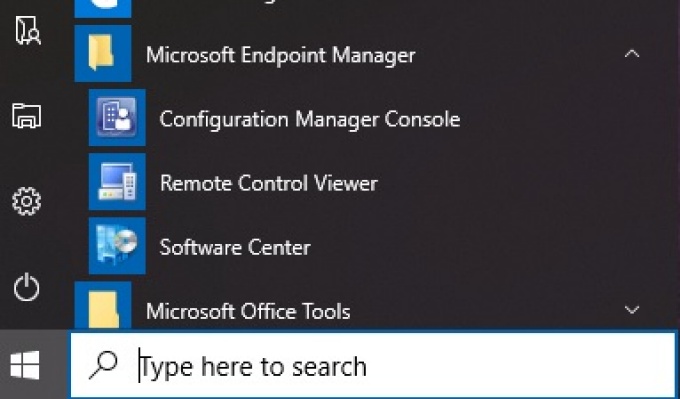
3. Alternatively, open the Start Menu and select "Software Center" from the software list. This program will be located within the "Microsoft Endpoint Manager" folder in the Start Menu:

4. In the "Software Center" window, browse the list of applications or use the search box to find "Jabber" (or whatever other software product you want to install). If using the search box you must press the "Enter" key after enter the search word:

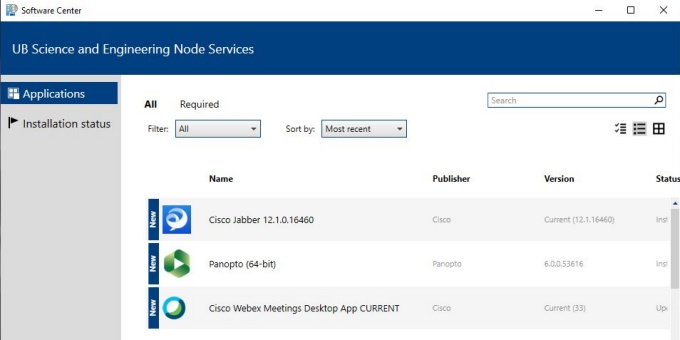
5. Click on the application to select it.
6. Once selected, click on the "Install" button to add it to your system:

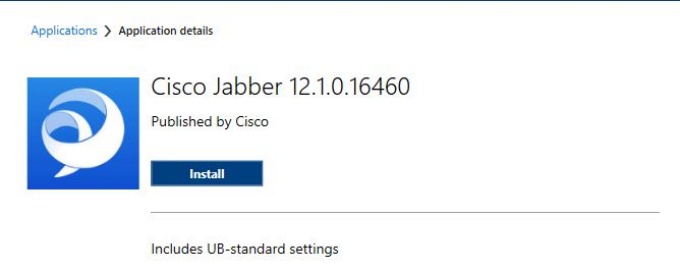
7. An icon for the software will appear in your Start Menu, which you can click on to use it.