Self Service
Users of SENS-supported Macintosh computers can leverage the JAMF Self Service application to install software without the need for administrative support.
Sample Installation Step-by-Step
Here is an example using the "Cisco Jabber" software, but the process is the same for all software provided by Self Service.
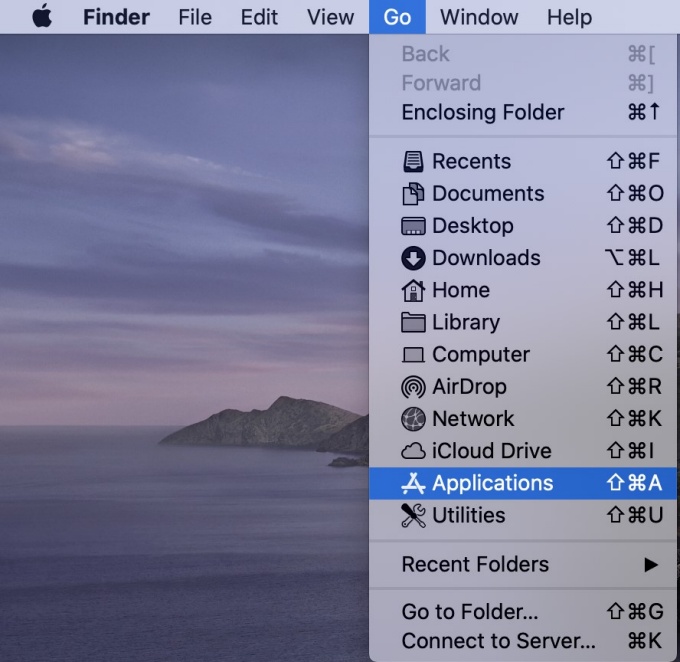
1. To start, select the “Finder” bar on your Mac. If the bar doesn’t say “Finder” next to the apple, click anywhere on the empty desktop to change it.


2. Select the “Go” menu item and then select “Applications” from that submenu.

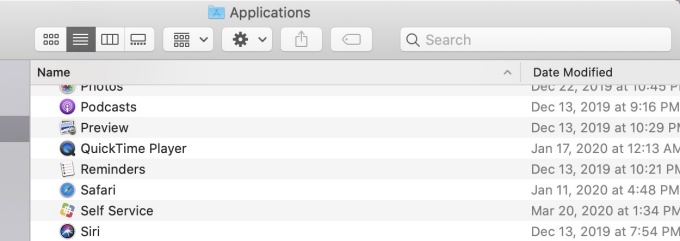
3. In the “Applications” folder, double click on “Self Service” from the list of applications.

4. You will now be presented with the Mac “Self Service” portal.

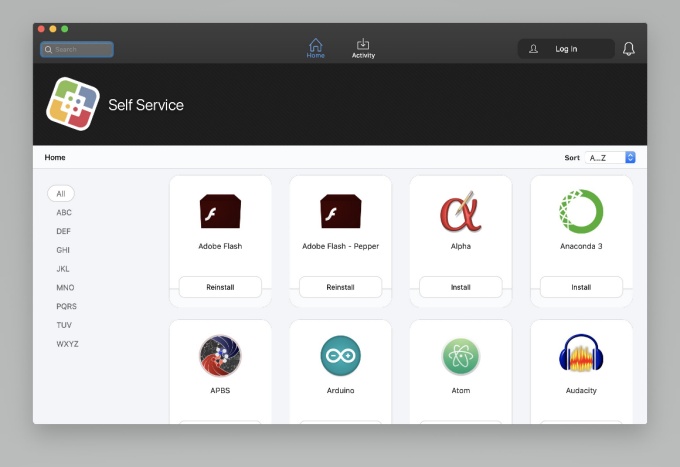
5. To find an application, you can search one of three ways:
- Scroll through the list of applications.
- Use the letters in the left column to search by category (applications in this list are grouped by name of application).
- Use the Search box.
For the “Jabber” example, click the letters “JKL” to search for Jabber:

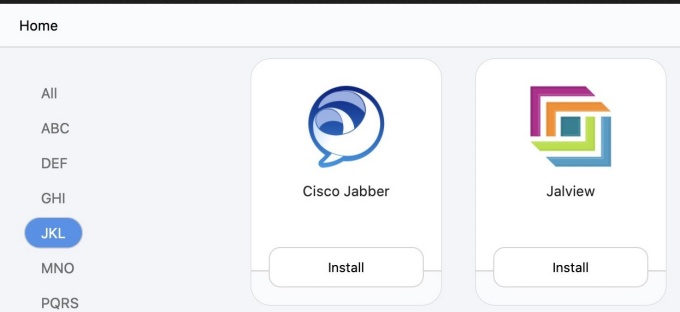
Click on “Cisco Jabber”.
6. Click the “Install” button to install Jabber on your Mac.

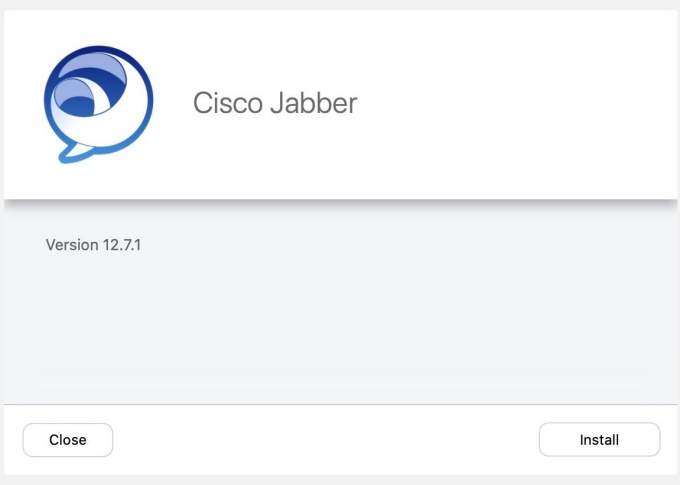
7. Jabber is now installed.